
How to Access Your Payee Profile
-
From your PaymentWorks homepage, select My Payee Profile.
-
Your profile is organized into sections, including:
-
Primary Information
-
Legal Entity & Tax Information
-
Banking
-
Addresses
-
PO Information
-
Insurance
-
-
Click into any section, make your changes, and select Save.
Updating Each Section of Your Profile
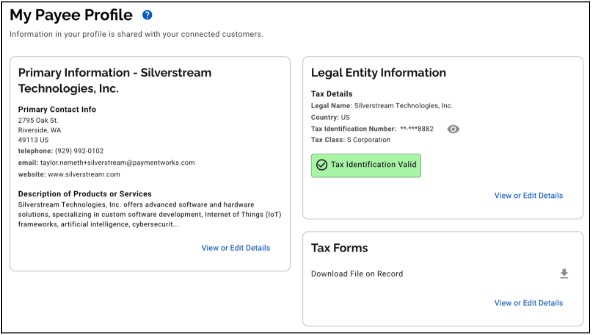
Primary Information, Legal Entity & Tax Forms
-
-
Update these fields whenever your business or legal information changes.
-
All connected customers will automatically see the updated information.
-
Bank Accounts & Addresses
-
Add new entries from the Banking or Addresses sections.
-
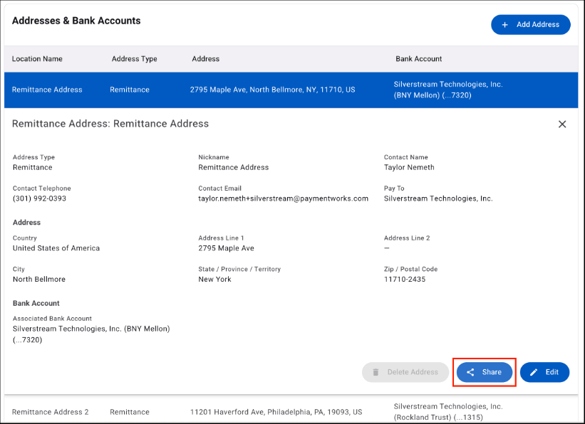
To share a bank account with customers, link it to a remittance address in your profile.
-
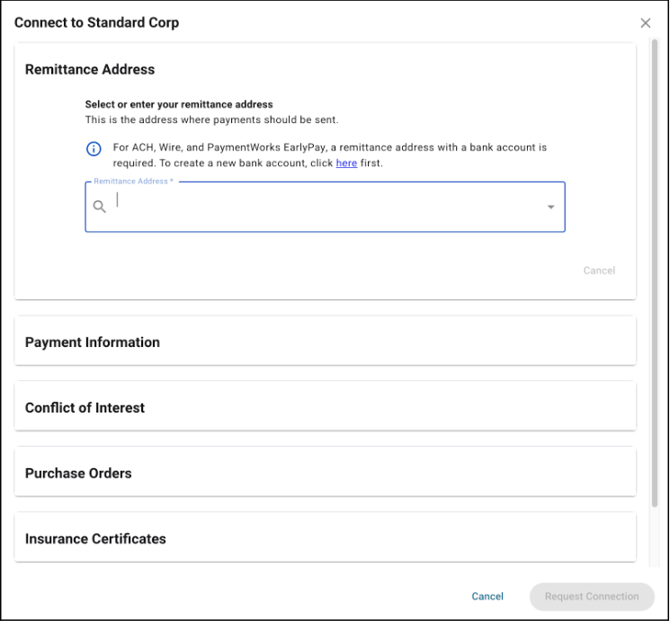
During Quick Connect, you’ll choose which Bank/Address site to share.
Important:
You can also share additional bank/address sites directly in the Payee Profile.
Once shared, any edits to those sites will automatically trigger updates to all connected customers.
Purchase Order (PO) Information
-
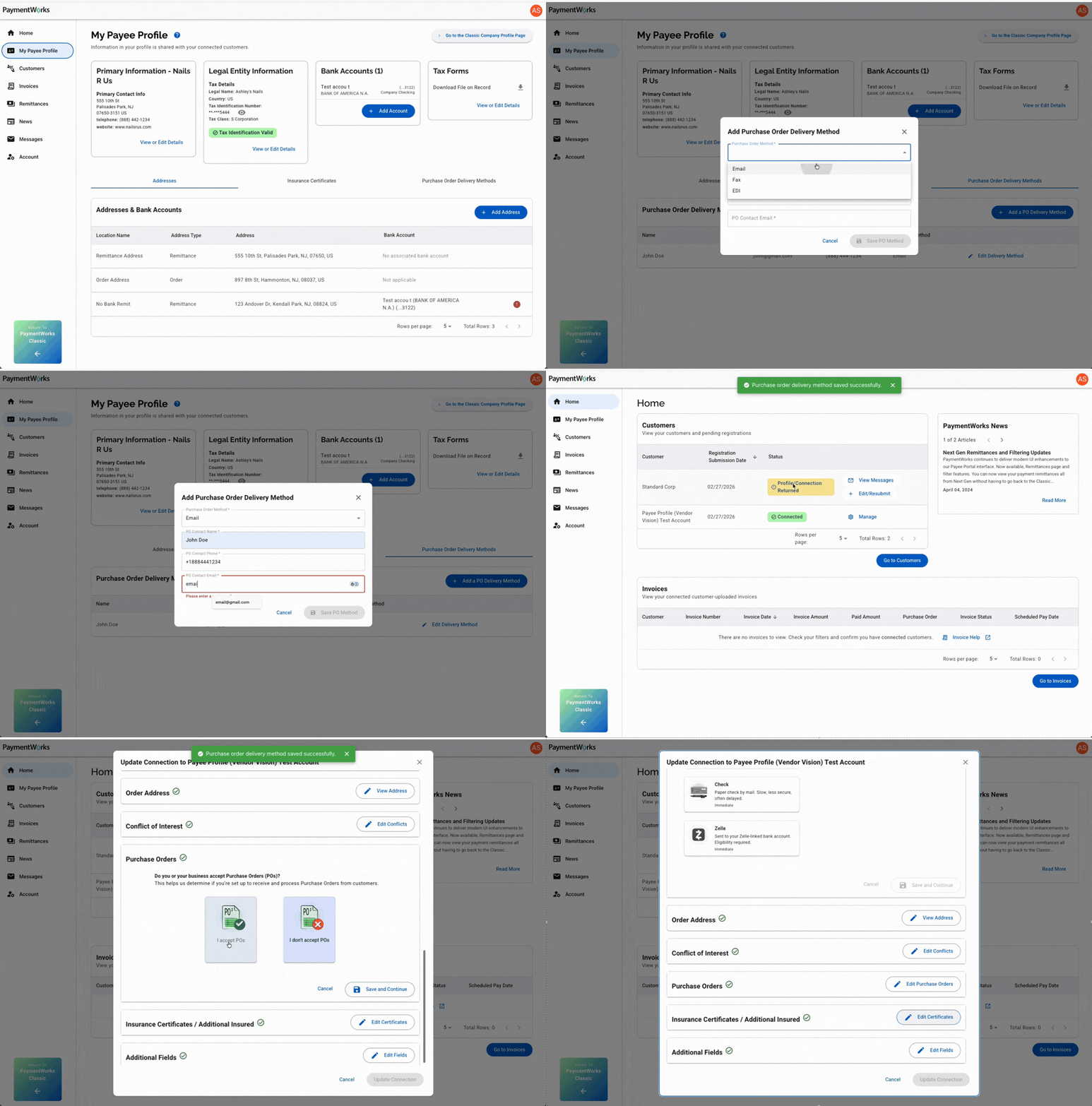
PO information is global and stored in your Payee Profile.
-
If you only have one PO set, it will be used for all connections by default.
-
If you create multiple PO sets, you can select which one to share for each customer during Quick Connect.
-
Updates to PO sets are automatically shared with all customers using that set.
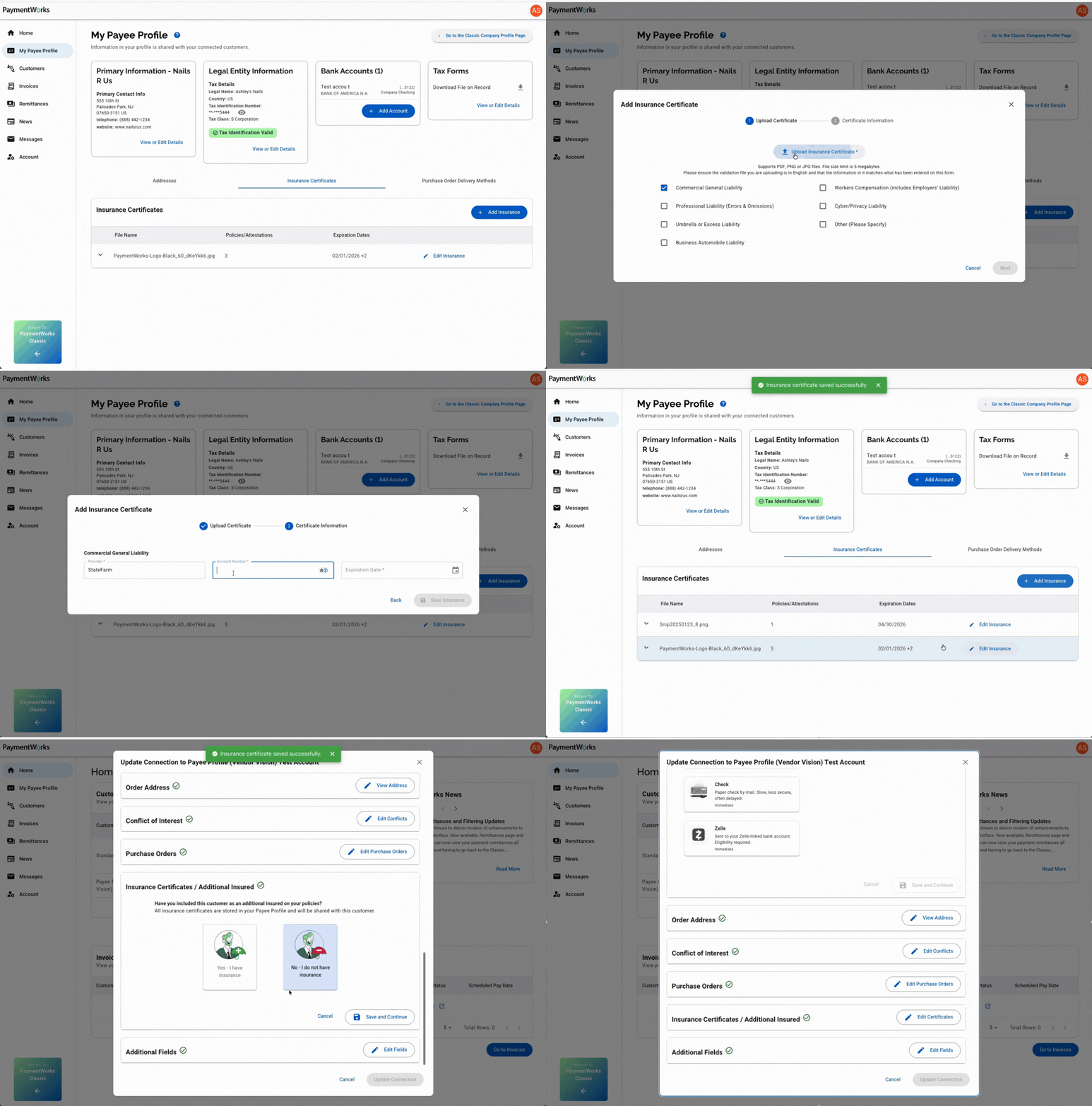
Insurance Certificates
-
Upload global insurance documents (e.g., liability certificates, ACORD forms) in the Insurance section.
-
These are shared with all customers you connect with.
Note: Insurance attestations (confirming a specific customer has been added to your policy) are completed separately in the Customer Table during Quick Connect.
Tips for Keeping Your Profile Accurate
-
Review your Profile annually or when your business undergoes major changes.
-
Update banking, address, and tax information immediately if anything changes.
-
Keep insurance certificates current to avoid delays from customers who require them.
-
If you manage multiple PO sets or contacts, name them clearly so you can choose them easily during Quick Connect.