
What is Integration Mapping?
Integration Mapping lets you connect a standardized Dynamic Payment Method option to one of your existing legacy custom field options.
This is useful if your organization previously collected payment method information through custom fields and your integration still expects those legacy custom field values.
In other words:
- Dynamic Payment Method controls what the payee selects in the new standardized payment experience.
- Integration Mapping tells PaymentWorks where to place that selection in your existing legacy custom field structure so your integration can continue working as expected.
Why would I use Integration Mapping?
Some payer organizations have integrations that depend on a specific custom field value for payment methods.
For example, your current integration may expect to receive a value like:
- CHK - for US Individual
- CHKN90 - Non-US Individual
- ACH - US Individual and US Businesses
- Wire - Non-US Businesses
You may need to configure Integration Mapping if:
- Your organization previously used custom fields to collect payment method selections.
- Your integration depends on the specific value selected in those custom fields.
- Your legacy setup included different payment method fields or values based on payee type, country, entity type, or other conditions.
You likely do not need to configure Integration Mapping if:
- You are already using Dynamic Payment Method in production.
- Your organization does not integrate payment method values.
- Your integration only checks whether a payment method exists, rather than checking for a specific payment method value.
- You do not have legacy custom fields related to payment method selection.
Where does Integration Mapping appear?
Integration Mapping appears in the Registration Form Display section of the Dynamic Payment Method payments mapping table.
Each row in the table represents a specific combination of:
- Payment method and Term Combination
- Display conditions
- Description
- Integration Mapping value
To view or configure the Integration Mapping value, expand a row in the table.
Integration Mapping is only shown for payer accounts that have legacy custom fields available for mapping
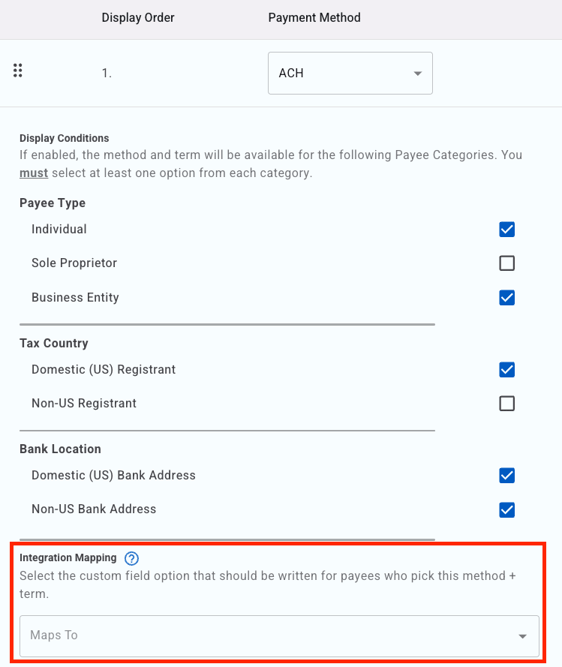
How to Configure Integration Mapping
- Go to Payment Method configuration.
- Locate the Registration From Display section.
- Find the row you want to configure.
- Click to expand the row.
- In Display Conditions location the Integration Mapping dropdown, select the appropriate legacy custom field option.
- Click Save.
Example Scenarios
1. Simple Mapping
- Your legacy custom field includes a payment method option called: ACH
- Your integration expects to receive ACH when a payee selects ACH.
-
Dynamic Payment Method setup
You create a row in the:
|
Display Condition |
Payment Method |
Term |
Integration Mapping |
|
All payees |
ACH |
Net 30 |
ACH |
Result
When a payee selects ACH / Net 30, PaymentWorks also populates the mapped legacy custom field option ACH.
Your integration continues receiving the value it already expects.
2. Conditional Mapping (Same Method, Different Paths)
- Your current registration form collects “Check” differently depending on the payee type. You may have had two separate legacy custom fields:
-
Even though both values are “Check,” they came from different conditional paths in your legacy form.
Your integration may expect the value to appear in the correct legacy field depending on whether the payee is a US individual or non-US individual.
-
Dynamic Payment Method setup
|
Display Condition |
Payment Method |
Term |
Integration Mapping |
|
Individual, US |
Check |
Standard |
Check — US Individual path |
|
Individual, Non-US |
Check |
Standard |
Check — Non-US Individual path |
Result
A US individual who selects Check will map to the legacy Check option from the US Individual path.
A non-US individual who selects Check will map to the legacy Check option from the Non-US Individual path.
The payee experience is standardized, but your integration still receives the legacy value in the place it expects.
3. No Mapping (Optional)
-
Dynamic Payment Method setup
Display Condition
Payment Method
Term
Integration Mapping
All payees
Virtual Card
Immediate
Unset
Result
The payee can still select Virtual Card / Immediate if that row is available to them.
However, PaymentWorks will not populate a legacy custom field value for that selection.
Use this when the payment method does not need to be passed through a legacy custom field for integration purposes.
Important Notes / Best Practices
- Always test mappings before deploying:
- Correct options display
- Correct legacy value is populated
- Integration receives expected values
- You may need multiple rows for the same payment method if legacy logic differs.