
1. What is the Payee Profile?
Your Payee Profile is where you manage your core business or personal information in PaymentWorks—like banking, addresses, tax forms, PO delivery methods, and insurance.
You update this information once and reuse it across all your customers.
Instead of updating information separately for each customer:
- You now manage everything in one place
- You choose what to share with each customer
- Some updates automatically apply across all customers
2. Banking & Remittance
How do I update my banking information?
Go to:
My Payee Profile → Bank Account
From there, you can add a new account or edit an existing one.
Removing a bank account can only be done if it is not connected to a remit address and shared with customers.
How do I share new banking information with a customer?
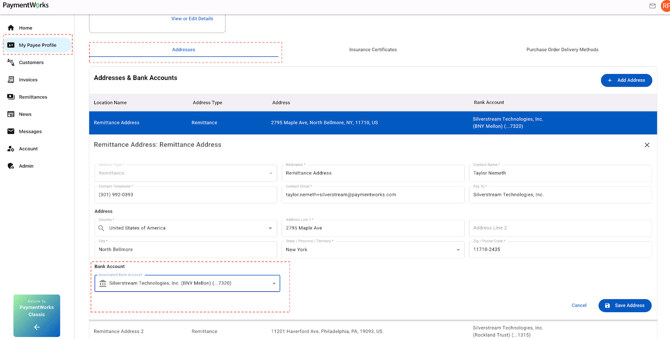
Bank accounts are shared by linking them to a remittance address.
To share:
- Add or update your bank account
- Link it to a remittance address
- Open Remit address -> select Edit -> use drop down to add a bank account.
- Select that combination when connecting with a customer
If I update a bank account, will customers see the change?
- Yes, if the account is already shared → updates are automatically sent
- No, if it’s new → you must choose to share it
Can I have multiple bank accounts?
Yes. You can store multiple accounts and choose which one to share per customer.
3. Addresses
How do I update or add an address?
Go to:
My Payee Profile → Addresses
Add or edit an address and save.
How do I share an address with a customer
Go to:
My Payee Profile → Addresses
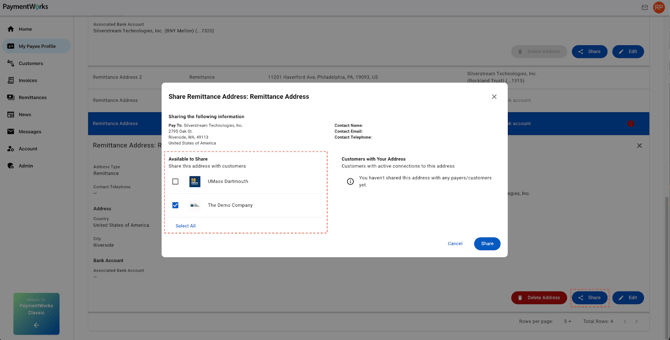
Select and expand and address and select the “share” button
The share modal will list all available customers you are able to share this address with. Check the box next to the ones you would like to share with and select “share” .
If I update an address, does it update for all customers?
Yes, if that address is already shared, updates are automatically applied to all customers with whom you have shared it.
4. Purchase Order (PO) Delivery
How do I update PO delivery methods?
Go to:
My Payee Profile → Purchase Order Delivery Methods
You can create or edit delivery methods (email, fax, EDI, etc.).
How do I share a PO delivery method with a customer?
PO Delivery methods are managed from the profile but when connecting with a customer in the customer table (home screen), you select which delivery method to share with that specific customer.
Only one method can be shared per customer.
If I update a PO delivery method, what happens?
Any updates to the method stored in your profile will automatically apply to all customers with whom you have shared that method.
If you wish to only update one customer with a new PO method you can do this in the customer table -> Manage -> Purchase Order.
Can I delete a PO delivery method?
Yes but only if it’s not currently being shared to any customers.
5. Insurance
How do I upload or update insurance documents?
Go to:
My Payee Profile → Insurance
Upload your certificate and enter required details like provider, policy number, and expiration date.
Do I need to upload insurance for each customer?
No. Insurance is stored once and shared across all customers.
How do I mark a customer as “additionally insured”?
This is done per customer during the connection process or you can update the certification checkbox after connection by managing the customer connection.
If I update an insurance certificate, who sees it?
All customers will automatically receive the update.
6. Global Profiles vs Customer Specific
What is a global profile versus my connection to customer? Can i make a change for just one of my customers?
Once you create your initial profile, it becomes your Global Profile in PaymentWorks. This includes standardized information such as:
- Legal name
- Tax ID (EIN/TIN/SSN)
- Banking details
- Addresses
After connecting with customers, you can choose how updates are applied:
Options for Updating Information
- Global updates
- Apply to all connected customers
- Customer-specific updates
- Apply only to the selected customer
Important Notes / Best Practices
- Use global updates for consistent information across all customers.
- Use customer-specific updates when a customer requires unique details.
7.When will my customers (payers) see my updates/updated information?
Timing depends on whether the update is global or customer-specific.
Global Profile Updates (Primary/Legal Information/Insurance/Tax Forms)
- Changes are shared with customers automatically in real time
Customer-Specific Information
Examples include:
- Remittance addresses
- Banking information
- PO delivery methods
- Conflict of interest
To Share Customer-Specific Updates
See the above sections for each
Important Notes / Best Practices
- Customer-specific updates are not automatically shared
- Always ensure you select the correct customer before sharing
8. How can I remove a bank account or remittance address?
You can delete a bank account once it is no longer linked to any remittance address.
Steps to Remove a Bank Account
- Go to My Profile
- Navigate to Bank Accounts
- Click Delete Bank Account
If the Delete Option Is Disabled
- The bank account is still connected to a remittance address
Steps to Resolve
- Go to the associated remittance address
- Update or remove the linked bank account
- Return to Bank Accounts
- Click Delete Bank Account
Important Notes / Best Practices
- A bank account must be fully disconnected before deletion
- Always verify remittance mappings before making changes
9. Why are some questions repeated in additional information section?
Some customers retain legacy fields even after standardization.
Details
As PaymentWorks standardized Payee Profiles, some customers chose to keep their existing Additional Information sections. This can result in repeated or similar questions.
Important Notes / Best Practices
- These fields are customer-specific requirements
- For clarification, contact your customer directly
10. Returned Profile
My profile was returned, how do I fix the data and resubmit it to my customer?
If your profile was returned, you may need to complete one or two steps, depending on what needs to be corrected:
1) Update your profile information (if needed)
If the issue is related to your core profile details (such as Legal Name, Tax Classification, Tax ID..etc):
- Log in to your PaymentWorks account.
- Navigate to My Payee Profile.
- Locate the relevant section (for example, Legal Entity Information) and select “View/Edit Details.”
- when you have completed the edit, Click “Save.”
Note: All connected customers will receive an update upon save as this is global profile information you are changing.
2) Resubmit your profile to your customer
Once any necessary updates are made (or if no profile changes were required):
- Return to your home page.
- Locate your customer in the customer table.
- Select “Resubmit.”
- Make any necessary changes and “Resubmit” the profile
Helpful or Related Knowledge Base Articles:
Understanding Your Payee Profile