
How Versions Are Created
When a payee's onboarding submission is fully approved, Version 1 (v1) of the profile is created. Each subsequently fully approved data change generates a new version. Examples of changes that create new versions include bank account updates, address updates, new locations, and other field-level changes.
Note: Not all versions are created by a data change approval. Some versions are created when the profile is first connected or when a new location is first connected. These versions do not have field-level changes associated with them.
On connected profiles, the Profile Data and Locations & Banking tabs always reflect only payer-approved data. Version History allows you to navigate to and view the approved state of data at any prior version.
Opening Version History
Version History is available on connected profiles only. To open it, click the Version History link in the profile header beneath the profile name. This opens the Version History panel on the right side of the page.
The panel displays a list of all versions for the profile. Clicking a version updates the Profile Data and Locations & Banking tabs to reflect the approved state of data at that version.
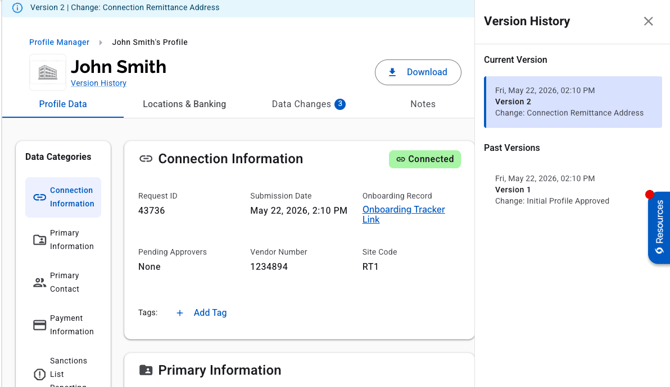
The Version History Banner
When the Version History panel is open, a blue banner appears at the top of the profile. The banner displays the following information for the version currently being viewed:
- Version number
- Change type (e.g., "Change: Bank Address Updated", "Change: Location Added")
- Update/Registration (Request) ID
The banner also contains the following action buttons:
- View Changes: Opens a modal containing the full details of the data change that created the version (see below)
- Go to Latest Version: Resets the active view to the latest version. This button is only visible when viewing a past version.

The View Changes Modal
Clicking View Changes from the blue banner opens a modal with the full details of the approved data change that created the active version. The modal contains:
- Request / Update ID
- Submitted date and timestamp
- Reviewed (approved) date and timestamp
- Vendor Number and Site Code(s)
- Field-level before and after values
Within the modal, Previous and Next navigation buttons allow you to step through versions. Navigating to a different version updates both the active version displayed behind the modal and the contents of the modal simultaneously.

Note: View Changes is not available on all versions. Versions created at initial profile connection or when a new location is first connected do not have field-level changes, so the View Changes option is skipped for those versions.